
A fast and intuitive tool, ideal for quickly capturing and sharing accurate screenshots with ease.
The Snipping Tool is a free and compact screen capture utility for Windows, created by Blazing Tools Software. It focuses on quick and accurate screenshots, making it ideal for business and productivity tasks where you frequently need to share visual snippets. It’s perfect for anyone looking for a simple tool to capture specific parts of the screen without having to deal with a complex interface.
A fast and intuitive tool, ideal for quickly capturing and sharing accurate screenshots with ease.Focused on simplicity and speed
The main appeal of the Snipping Tool is its simple design. The program is small and easy to use, with no distractions or unnecessary elements. It’s ready to use right out of the box, so you can start capturing images immediately without having to configure a long list of options.
This emphasis on clarity and accessibility makes it attractive even to those who don’t usually use screen capture software. You’ll learn to use it in seconds and continue using it without feeling overwhelmed.
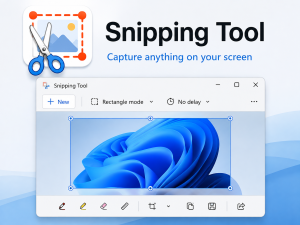
Targeted screen captures
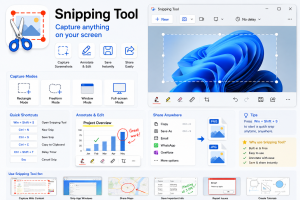
The Snipping Tool focuses on capturing only the parts of the screen you actually need. You can select a classic rectangular region or draw a freeform shape to define an irregular area. This flexibility is useful when you want to highlight a specific detail, such as a window pane or a small section of a document, instead of capturing the entire screen.
By focusing on these two capture modes, the program streamlines the process while covering the most common scenarios in daily work.
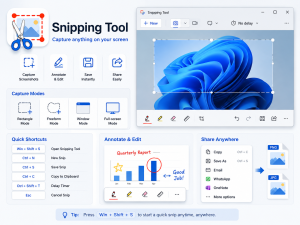
Useful actions after taking a screenshot
Once you capture an area, the Snipping Tool offers several convenient options to streamline your workflow. The image can be:
Copied to the clipboard for direct pasting into documents, chat applications, or presentations.
Saved as a file when you need a permanent copy on your hard drive.
Sent as an email attachment, which is especially useful for sharing images with colleagues or clients.
These options are simple yet effective, and they integrate seamlessly with your usual office and productivity routines.
What you do not get
The Snipping Tool focuses solely on capturing images, not editing them. It doesn’t include built-in tools for annotating, highlighting, cropping, or adding shapes or text. If you frequently need to edit screenshots, you’ll have to open them in another application.
This limitation keeps the tool simple, but it also means it won’t replace more comprehensive screenshot or image editing programs for users who rely on advanced editing features.
Overall impression
The Snipping Tool offers a reliable and simple way to capture specific areas of the screen. Its small size, clear interface, and convenient post-capture options make it ideal for those who frequently need to quickly capture and share visual information. While the lack of editing tools makes it less comprehensive as an all-in-one solution, its targeted focus and dependable performance make it a valuable addition to any productivity toolkit.


